
Eye-Tracking UX
0 1120
ðŸ‘ï¸ What is Eye-Tracking UX?
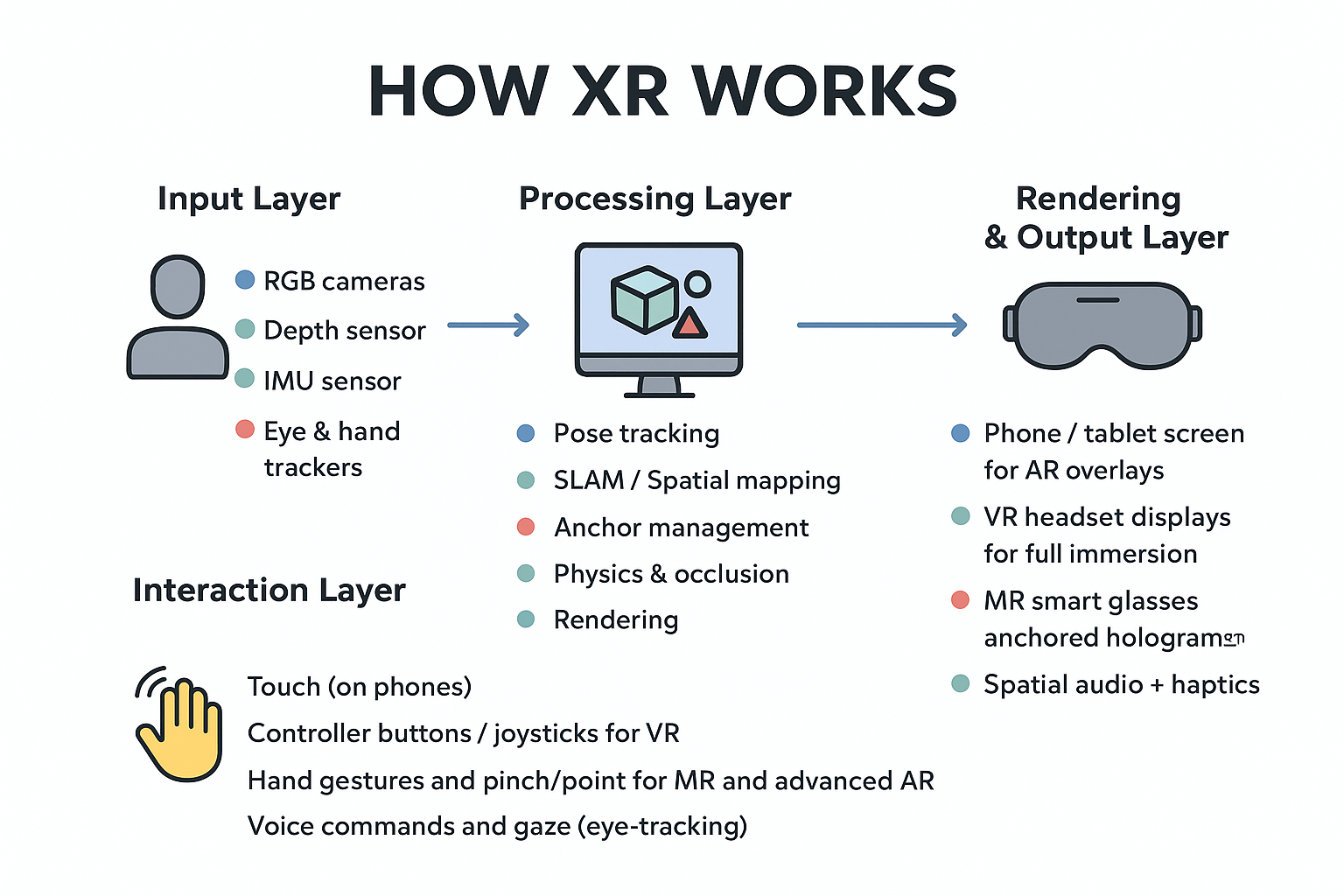
Eye-Tracking UX refers to designing interfaces that respond to where users look, how long they focus, and the patterns of their gaze. In immersive XR systems, the eyes act as an input device — enabling natural, hands-free control, smoother navigation, and intelligent UI adaptation. Instead of relying solely on controllers or gestures, eye-tracking lets applications understand user intent with precision.🎯 Why Eye-Tracking UX Matters in XR
Eye-tracking is becoming a core part of modern headsets, powering foveated rendering, adaptive menus, and gaze-based selections. Eye-Tracking UX matters because it reduces workload on the user, speeds up interactions, and opens the door to interfaces that feel almost telepathic. When done right, gaze-driven experiences are faster than hand-based input and far more intuitive.- Natural intent detection – systems can predict actions based on gaze paths.
- Less physical strain – reduces overuse of gestures or controller clicks.
- Accessibility – enables interface use for people with limited mobility.
- Smarter UI – menus appear only when relevant.
🧠Key Design Principles for Eye-Tracking UX
Crafting great Eye-Tracking UX requires understanding how people visually explore space. Here are essential principles:- Avoid forced staring: Holding gaze too long causes fatigue — keep dwell times short.
- Offer multimodal input: Combine gaze with tap, gesture, or voice for confirmation.
- Give instant feedback: Highlight, glow, or outline elements when hovered by gaze.
- Use natural spacing: Interface elements should not cluster too close together.
- Respect peripheral vision: Don’t trigger UI changes based on small eye twitches.
📌 Common Interaction Patterns in Eye-Tracking UX
Some patterns consistently work well in XR:- Gaze + Dwell: Look at an element for a short duration to select.
- Gaze + Gesture: Look at something, then pinch or tap to confirm.
- Gaze for Highlight: Objects glow or expand slightly when looked at.
- Foveated Rendering: High-resolution detail appears where you are looking.
🧪 Example: Simple Gaze Selection in Unity (C#)
Below is a minimal script showing how to detect gaze and trigger a response when the user looks at an object.
// Attach this script to an object you want to track with gaze

using UnityEngine;

public class GazeInteract : MonoBehaviour
{
    public float dwellTime = 1.2f;
    private float gazeTimer = 0f;
    private bool isGazing = false;

    public void OnGazeEnter()
    {
        isGazing = true;
        gazeTimer = 0f;
    }

    public void OnGazeExit()
    {
        isGazing = false;
        gazeTimer = 0f;
    }

    void Update()
    {
        if (isGazing)
        {
            gazeTimer += Time.deltaTime;

            if (gazeTimer >= dwellTime)
            {
                Debug.Log("Gaze selection triggered!");
            }
        }
    }
}
âš™ï¸ Example: WebXR Eye-Tracking Setup (JavaScript)
This snippet demonstrates reading gaze direction using a WebXR session.
// Basic WebXR eye-tracking snippet

navigator.xr.requestSession("immersive-vr", { requiredFeatures: ["eye-tracking"] })
  .then(session => {
      session.requestAnimationFrame(function loop(t, frame) {
          const eyeData = frame.getViewerPose(session.renderState.baseLayer);
          if (eyeData && eyeData.views[0].eyeGaze) {
              const dir = eyeData.views[0].eyeGaze.direction;
              console.log("Gaze direction:", dir);
          }
          session.requestAnimationFrame(loop);
      });
  });
🔊 Feedback & Micro-Interactions
Eye-Tracking UX thrives on subtle cues. A soft glow, light haptic pulse, or a gentle sound can confirm that the system has understood the user's focus. Micro-interactions help make gaze-based interfaces feel alive and responsive.♿ Accessibility Considerations
Not all users have predictable eye movement patterns. A good design should support:- Voice confirmation for users with tremors or nystagmus
- Adjustable dwell times
- Fallback controller or keyboard input
- High-contrast and large interactable zones
âš ï¸ Pitfalls to Avoid
- Too-long dwell timers → user fatigue
- Accidental “eye-clicks†from quick glances
- Screen clutter reducing focus accuracy
- UI elements too far in peripheral vision
🔠Testing Eye-Tracking UX in Real Scenarios
Test in environments with varied lighting, movement, and user physiology. Eye-tracking systems behave differently depending on iris color, eyelid shape, and glasses — so diverse testing is essential for accuracy and fairness.🚀 Future of Eye-Tracking UX
With AI-driven attention prediction, gaze-based interfaces will soon understand emotional cues, cognitive load, and stress levels. Eye-Tracking UX will evolve into a vital component for adaptive XR experiences that reshape how humans communicate with machines.🧾 Final Thoughts / Conclusion ✨
Eye-Tracking UX represents the next leap in natural interaction. By respecting how humans see, focus, and react, designers can build XR experiences that feel effortless and intuitive. Start small, prototype often, and keep user comfort at the core — that’s the path to crafting meaningful gaze-based interactions.If you’re passionate about building a successful blogging website, check out this helpful guide at Coding Tag – How to Start a Successful Blog. It offers practical steps and expert tips to kickstart your blogging journey!
For dedicated UPSC exam preparation, we highly recommend visiting www.iasmania.com. It offers well-structured resources, current affairs, and subject-wise notes tailored specifically for aspirants. Start your journey today!

Share:



Comments
Waiting for your comments