
Unity XR Setup
0 983
🚀 Understanding Unity XR Setup
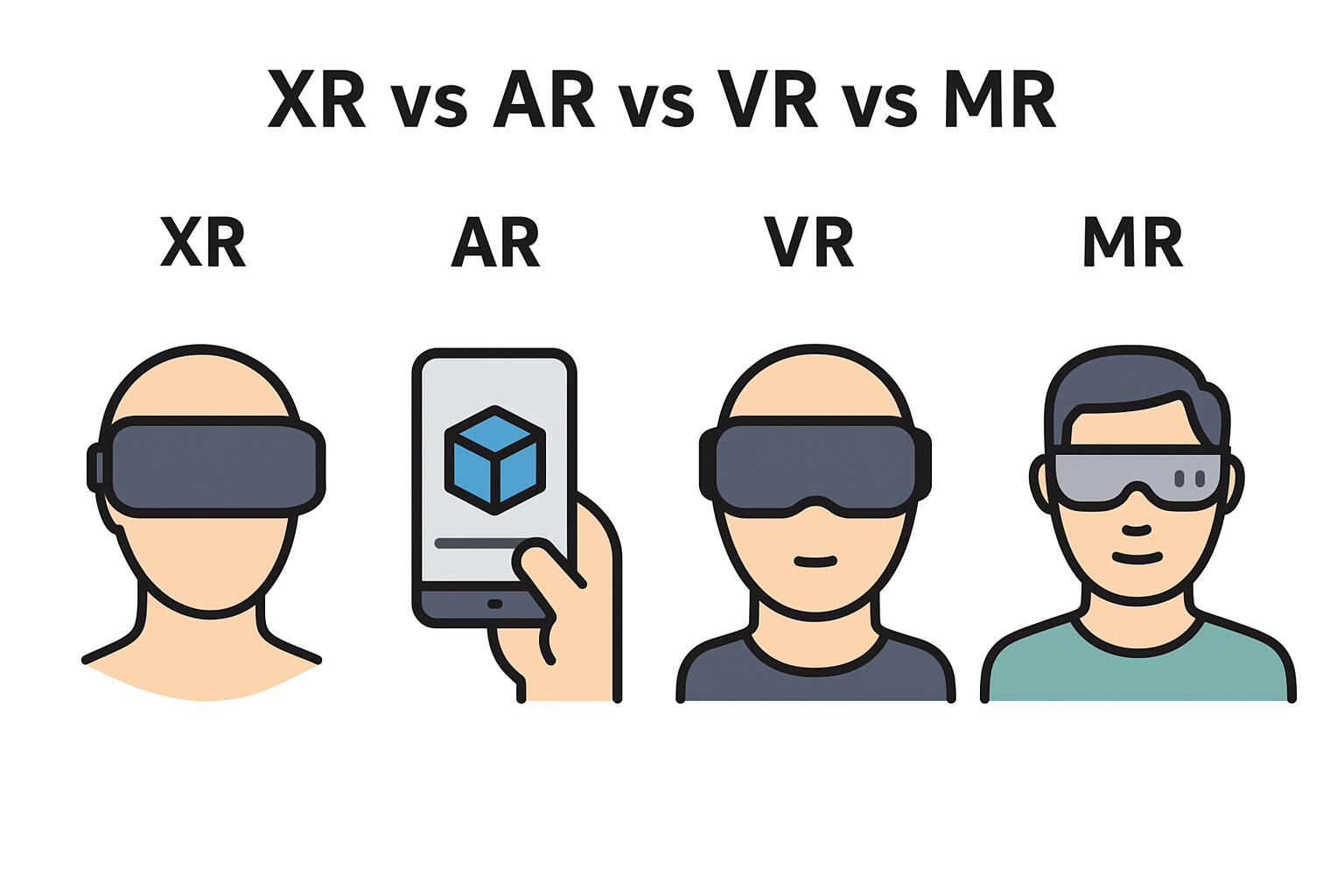
Unity XR Setup is the foundation for building immersive AR, VR, and MR experiences across platforms like Meta Quest, HoloLens, Pico, and mobile AR devices. Unity’s XR framework unifies device integration, simplifies configuration, and ensures your projects scale smoothly across different hardware. Whether you're creating simulations, games, or training tools, a proper Unity XR Setup guarantees stability, performance, and flexibility.🧩 Why Unity XR Setup is Important
Developers used to manage separate SDKs manually, which caused compatibility issues. Today, Unity XR Setup streamlines everything through XR Plugin Management, enabling:- Cleaner workflow with modular XR providers
- Cross-platform support without rewriting code
- Better performance with unified XR subsystems
- Easier debugging and device simulation
âš™ï¸ Step-by-Step: Installing XR Plugin Management
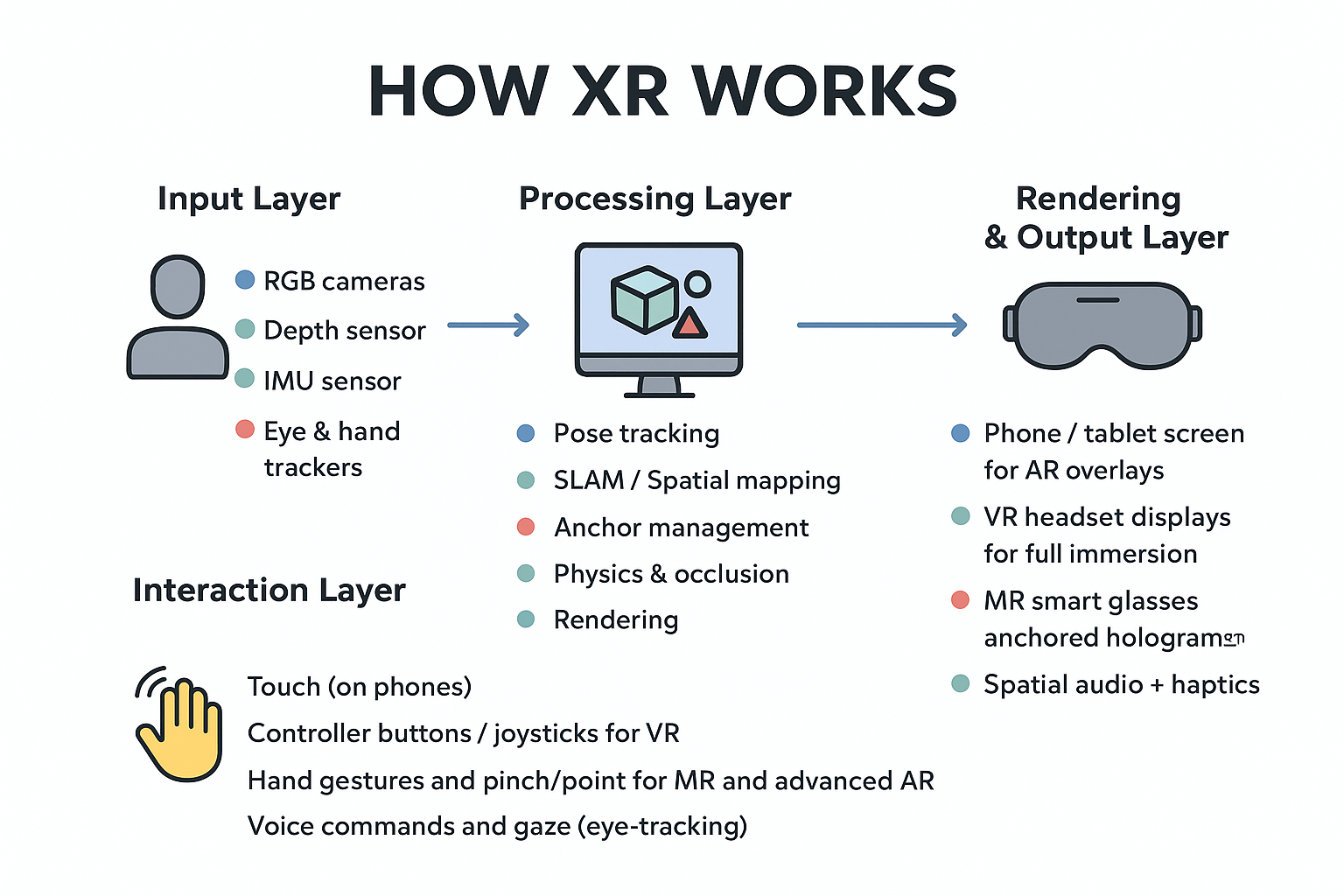
To begin using Unity XR Setup, the first step is enabling XR Plugin Management. This creates the base infrastructure needed for VR and AR devices.
1. Open Unity → Go to *Edit > Project Settings*.
2. Click **XR Plugin Management** on the left panel.
3. Hit **Install XR Plugin Management**.
4. Under your target platform, enable the device plugin (e.g., OpenXR, Oculus, Windows XR, ARCore, ARKit).
🔧 Configuring OpenXR (Recommended) 🔥
OpenXR is the universal standard for XR development. Most headsets support it, making it the smartest choice for a future-proof pipeline.
1. After installing XR Plugin Management, select **OpenXR**.
2. Enable necessary **features** like:
   - Hand Tracking
   - Eye Tracking
   - Passthrough / MR features
3. Set **OpenXR** as the default **Interaction Profile** for your device.
4. Restart Unity to apply runtime changes.
🎮 Adding XR Interaction Toolkit (XRI)
Unity’s XR Interaction Toolkit helps you add grab, teleport, Ray Interact, poke gestures, and UI interactions without writing complex systems from scratch.
1. Go to *Window > Package Manager*.
2. Search for **XR Interaction Toolkit**.
3. Install the package and enable Input System support.
4. Add **XR Origin (Action-Based)** to your scene.
💡 Example: Adding Basic VR Movement (C#) 🧑â€ðŸ’»
Below is a simple movement script to show how input actions can be mapped for locomotion in an XR environment.
using UnityEngine;
using UnityEngine.InputSystem;

public class SimpleVRMovement : MonoBehaviour
{
    public CharacterController controller;
    public InputActionProperty moveAction;
    public float speed = 1.5f;

    void Update()
    {
        Vector2 input = moveAction.action.ReadValue();
        Vector3 direction = new Vector3(input.x, 0, input.y);
        controller.Move(transform.TransformDirection(direction) * speed * Time.deltaTime);
    }
}
🧪 Testing XR Setup in Play Mode
Unity supports XR device simulation, so you can test head movement, controllers, and interactions without wearing a headset.- Press Shift + Space to toggle simulation mode
- Use Right mouse to rotate the simulated headset
- Use Q / E to move the simulated controllers
📱 Building for Devices
Once your scene is ready, you can build for different headsets:- Meta Quest: Android build with OpenXR or Oculus Plugin
- HoloLens: UWP or Win32 build with OpenXR
- Pico: OpenXR provider
- Mobile AR: ARCore or ARKit
âš ï¸ Common Issues & Fixes
- Black Screen on Build: Wrong XR runtime → Enable correct OpenXR runtime in system settings
- Controllers not tracking: Missing interaction profile → Enable in OpenXR settings
- Input not working: Update bindings in the Input System
🌟 Final Thoughts / Conclusion
Unity XR Setup gives you a clean, unified foundation for building immersive AR/VR/MR applications. With XR Plugin Management, OpenXR, and the XR Interaction Toolkit, developers can work faster and maintain cross-platform compatibility effortlessly. Mastering Unity XR Setup is the first real step toward creating powerful and scalable spatial experiences.If you’re passionate about building a successful blogging website, check out this helpful guide at Coding Tag – How to Start a Successful Blog. It offers practical steps and expert tips to kickstart your blogging journey!
For dedicated UPSC exam preparation, we highly recommend visiting www.iasmania.com. It offers well-structured resources, current affairs, and subject-wise notes tailored specifically for aspirants. Start your journey today!

Share:



Comments
Waiting for your comments